
Step 1
Install and open UnboxedSpend
Download the Windows installer, complete the install, then launch the desktop app so you can add your license and confirm the app opens cleanly. macOS coming soon.
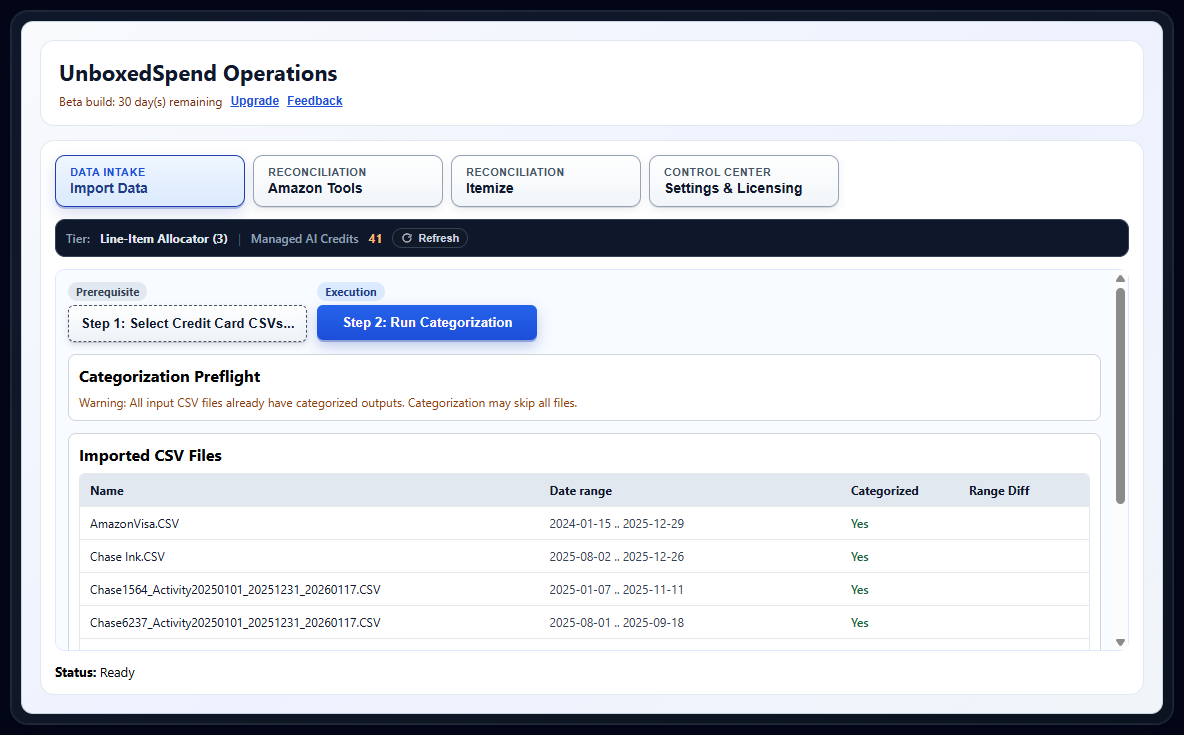
Desktop App Tutorial
Follow this sequence if you are setting up UnboxedSpend for the first time and want the least confusing path.
Step 1
Download the Windows installer, complete the install, then launch the desktop app so you can add your license and confirm the app opens cleanly. macOS coming soon.
Step 2
Use Managed AI if you want the simplest setup with tracked credits, or choose your own API key path if you prefer provider-managed billing. No AI training is required from you because UnboxedSpend uses AI to generate categorization rules.
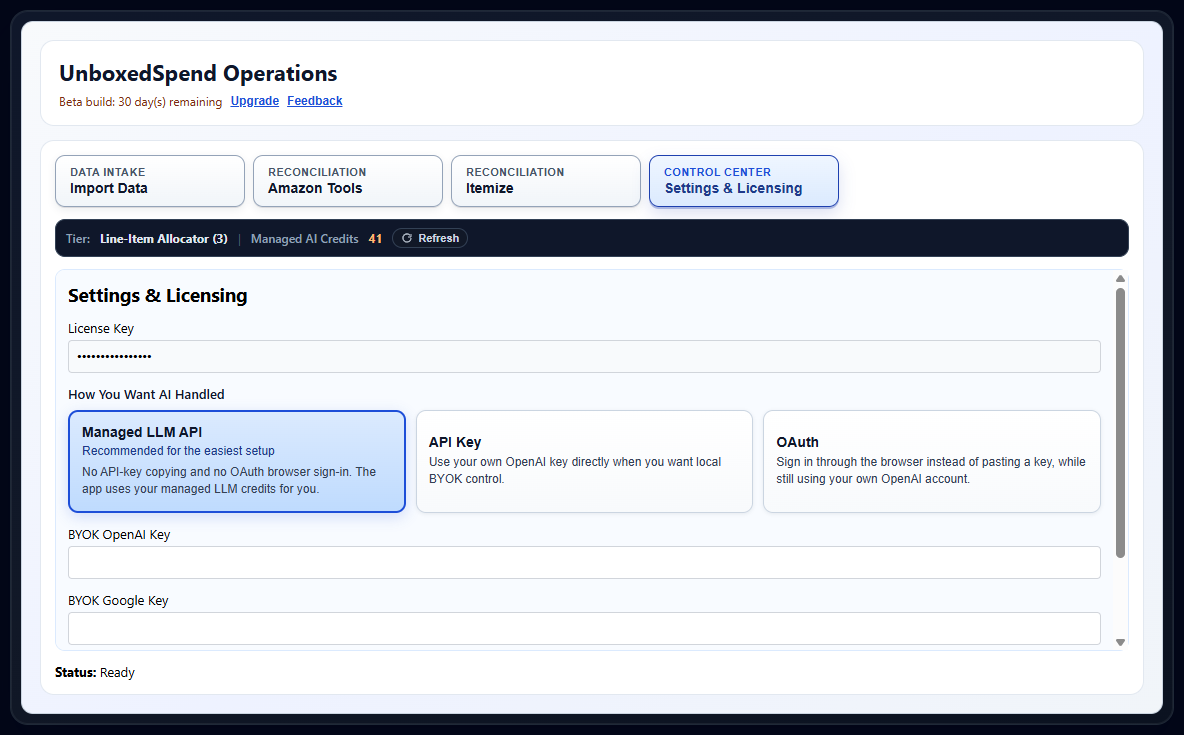
Step 3
Upload a sample CSV or start an Amazon reconciliation run, review the output, and make sure the resulting categories and clearing-account behavior match your expectations.
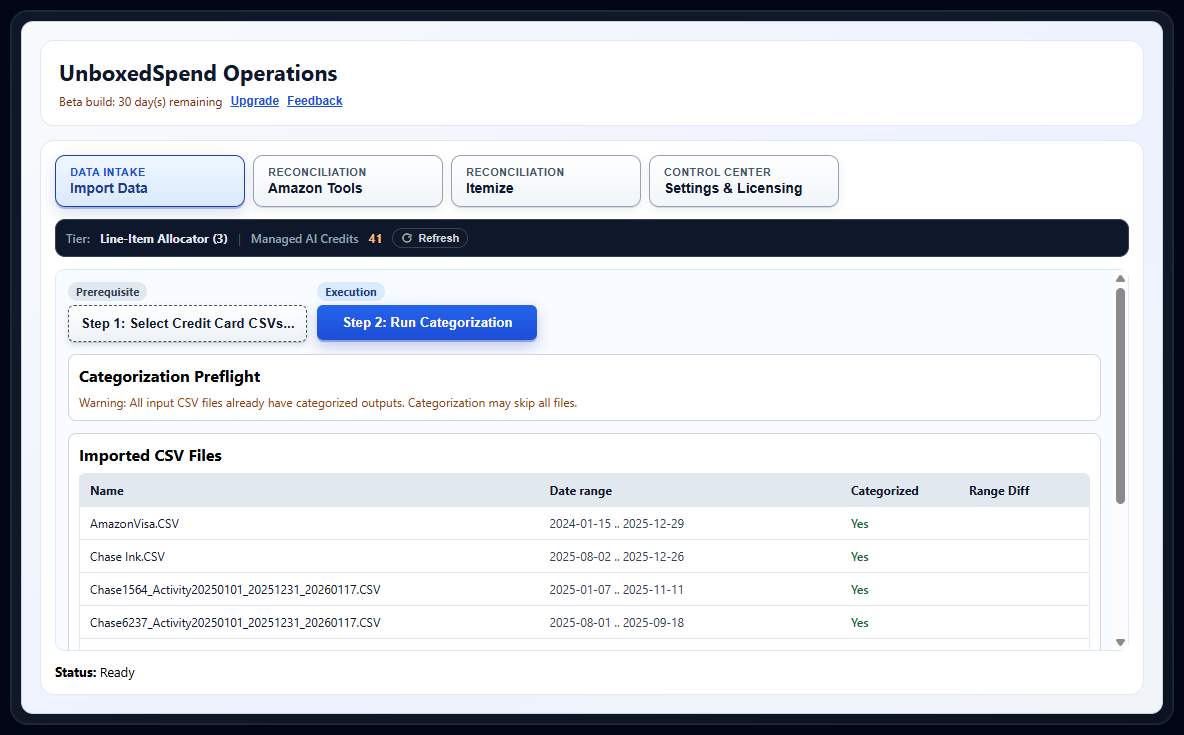
Step 4
Basic centers on Import Data, Instant Reconciler adds Amazon Tools for order-level clearing, and Line-Item Allocator unlocks Itemize for item-level clearing once you have Amazon order-history exports ready.
Step 5
If you hit a login, licensing, or credit issue, go to the dashboard for account recovery or use the feedback page to send the team the details.
Clearing Walkthrough
Compare order-level clearing and item-level clearing side by side using one shared order scenario so the difference is obvious before you choose a workflow.
Debit and credit here are bookkeeping directions, not `good/bad` transactions.
Base categorized aggregates stay reproducible and immutable; clearing writes accounting-adjusted outcomes into derived `_cleared` CSV artifacts.
Order-Level Clearing
Instant Reconciler
Use this when you want Amazon clearing quickly at the order level without waiting for item-level export files.
Requires categorized baseline plus Amazon Transaction History matching for the order.
What this is doing
At order level, the full order amount moves as one unit. Instead of splitting the order into products, the workflow posts one grouped clearing entry for the matched order.
Paired action: write `Transfer to the Amazon Clearing Account` to derived `all_categorized_normalized_cleared.CSV`, then append the exact matching amount (`49.98`) to `Amazon_Clearing_Account.CSV`.
How each transaction is processed
1) Start with these CSVs
2) Actions on each CSV (with examples)
| CSV | Action | Example |
|---|---|---|
| ~/UnboxedSpend/output/Categorized/all_categorized_normalized_cleared.CSV | Write matched Amazon-funded row category as `Transfer to the Amazon Clearing Account`. | Order 112-9843210-4455667 transfer relabel is written in the derived cleared file. |
| Amazon Transaction History export CSV | Match order IDs and lock grouped order amount used for clearing. | Order 112-9843210-4455667 contributes grouped amount 49.98. |
| ~/UnboxedSpend/output/ClearingAccount/Amazon_Clearing_Account.CSV | Append one grouped clearing row with the exact matched amount. | One grouped row posts 49.98 for the matched order. |
3) Atomic paired actions
Matched order ID 112-9843210-4455667
Example: 49.98 category rewrite and 49.98 clearing append happen together.
4) CSVs created or updated
Flow diagram
Amazon Transaction History CSV + all_categorized_normalized.CSV
-> match order ID 112-9843210-4455667
-> atomic pair
-> write transfer label in all_categorized_normalized_cleared.CSV
-> append 49.98 to Amazon_Clearing_Account.CSV
-> outputs: all_categorized_normalized_cleared.CSV + Amazon_Clearing_Account.CSV
Mini input (same Amazon order scenario)
| Date | Description | Amount | Source |
|---|---|---|---|
| 2026-03-05 | AMAZON MKTPLACE PMTS 112-9843210-4455667 | $49.98 | Transaction History |
Mini output (grouped clearing row)
| ai_date | ai_description | ai_charge | ai_credit | ai_category | Output |
|---|---|---|---|---|---|
| 2026-03-05 | Amazon Reconciler Order 112-9843210-4455667 | 49.98 | 0.00 | Transfer to the Amazon Clearing Account | 1 grouped order row |
Journal entries (debit / credit)
Journal entries below explain the posting logic; they are explanatory and not literal CSV rows exported by the app.
| Step | Transaction | Account | Debit | Credit | Why |
|---|---|---|---|---|---|
| 1 | Order 112-9843210-4455667 | Shopping Expense | 49.98 | 0.00 | Recognize spending for the order as one grouped expense. |
| 2 | Order 112-9843210-4455667 | Amazon Clearing Account | 0.00 | 49.98 | Offset the expense and keep the clearing account balanced. |
Journal totals by account
| Account | Debit | Credit | Note |
|---|---|---|---|
| Shopping Expense | 49.98 | 0.00 | - |
| Amazon Clearing Account | 0.00 | 49.98 | - |
| Total | 49.98 | 49.98 | Total debits equal total credits. |
Total debits equal total credits.
Expected output files
~/UnboxedSpend/output/ClearingAccount/Amazon_Clearing_Account.CSV
~/UnboxedSpend/output/Categorized/all_categorized_normalized_cleared.CSV
Item-Level Clearing
Line-Item Allocator
Use this when you need line-item detail by product and refund allocation for the same order.
Requires Amazon order-history personal data export (plus any refund export you plan to allocate), using categorized Amazon itemized transactions as input (not credit-card transaction rows).
What this is doing
At item level, the order is split into product-level entries, and refunds are posted back against the affected item category instead of only adjusting one grouped order line.
Paired action: for each item/refund movement, write `Transfer to the Amazon Clearing Account` to derived `all_categorized_itemized_cleared.CSV` and append the same net movement into `Itemized_Amazon_Clearing_Account.CSV`.
How each transaction is processed
1) Start with these CSVs
2) Actions on each CSV (with examples)
| CSV | Action | Example |
|---|---|---|
| ~/UnboxedSpend/output/Categorized/products/categorized_Retail.OrderHistory.1.CSV | Produce categorized item/refund rows used for item-level clearing movements. | Coffee Beans 29.99 and Water Filter refund -5.00 are prepared as item-level rows. |
| ~/UnboxedSpend/output/Categorized/all_categorized_itemized_cleared.CSV | Write transfer rows for clearing movements into derived itemized cleared output. | Each item/refund movement is represented as a transfer-labeled row in the cleared analysis file. |
| Amazon Refund export CSV | Provide refund rows that are mapped to item-level categories and signs. | Water Filter 3-pack refund -5.00 is mapped to Household Refund/Returns. |
| ~/UnboxedSpend/output/ClearingAccount/Itemized_Amazon_Clearing_Account.CSV | Append per-item and refund clearing movements with matching amounts. | 29.99 item, 19.99 item, and -5.00 refund movements are appended. |
3) Atomic paired actions
Each item or refund movement
Example: Refund movement -5.00 updates itemized transfer row and clearing row together.
4) CSVs created or updated
Flow diagram
categorized_Retail.OrderHistory.1.CSV + all_categorized_itemized.CSV + Amazon_Clearing_Account.CSV + Amazon Refund export CSV
-> split order 112-9843210-4455667 into item/refund movements
-> atomic pair per movement
-> write transfer row in all_categorized_itemized_cleared.CSV
-> append same signed amount to Itemized_Amazon_Clearing_Account.CSV
-> outputs: all_categorized_itemized_cleared.CSV + Itemized_Amazon_Clearing_Account.CSV
Mini input (same Amazon order scenario)
| Order ID | Item | Item Total | Source |
|---|---|---|---|
| 112-9843210-4455667 | Coffee Beans 2 lb | $29.99 | Retail.OrderHistory.1.csv |
| 112-9843210-4455667 | Water Filter 3-pack | $19.99 | Retail.OrderHistory.1.csv |
| 112-9843210-4455667 | Water Filter 3-pack Refund | -$5.00 | Retail.OrderHistory.1.csv |
Mini output (split itemized rows)
| ai_date | ai_description | ai_charge | ai_credit | ai_category | Output |
|---|---|---|---|---|---|
| 2026-03-05 | Coffee Beans 2 lb | 29.99 | 0.00 | Transfer to the Amazon Clearing Account | Item row 1 |
| 2026-03-05 | Water Filter 3-pack | 19.99 | 0.00 | Transfer to the Amazon Clearing Account | Item row 2 |
| 2026-03-06 | Water Filter 3-pack Refund | 0.00 | -5.00 | Transfer to the Amazon Clearing Account | Refund row |
Journal entries (debit / credit)
Journal entries below explain the posting logic; they are explanatory and not literal CSV rows exported by the app.
| Step | Transaction | Account | Debit | Credit | Why |
|---|---|---|---|---|---|
| 1 | Coffee Beans 2 lb | Groceries Expense | 29.99 | 0.00 | Record the item-level purchase in Groceries. |
| 2 | Coffee Beans 2 lb | Amazon Clearing Account | 0.00 | 29.99 | Offset Groceries purchase in the clearing account. |
| 3 | Water Filter 3-pack | Household Expense | 19.99 | 0.00 | Record item-level purchase in Household. |
| 4 | Water Filter 3-pack | Amazon Clearing Account | 0.00 | 19.99 | Offset Household purchase in the clearing account. |
| 5 | Water Filter 3-pack Refund | Amazon Clearing Account | 5.00 | 0.00 | Bring refund money back through clearing. |
| 6 | Water Filter 3-pack Refund | Household Expense (Refund/Returns) | 0.00 | 5.00 | Reverse part of Household expense due to refund. |
Journal totals by account
| Account | Debit | Credit | Note |
|---|---|---|---|
| Groceries Expense | 29.99 | 0.00 | - |
| Household Expense (net) | 19.99 | 5.00 | - |
| Amazon Clearing Account | 5.00 | 49.98 | - |
| Total | 54.98 | 54.98 | Total debits equal total credits. |
Total debits equal total credits.
Expected output files
~/UnboxedSpend/output/ClearingAccount/Itemized_Amazon_Clearing_Account.CSV
~/UnboxedSpend/output/Categorized/all_categorized_itemized_cleared.CSV
Before You Use Itemize
The Itemize workflow requires an Amazon order-history personal data export. Amazon often takes a couple of days to provide that export after you request it. That wait comes from Amazon's export process, not from the app. As soon as you get that export from Amazon, you can finish the full item-level workflow.
Start Here
Today UnboxedSpend starts from the bank or card CSV files you already download yourself.
If Amazon asks you to log in, you sign in directly there in your own local browser window.
The finished categorized and clearing outputs stay on your machine for the budgeting workflow you already use.
macOS coming soon.
Tier Comparison
Each tier becomes clearer when you look at the tab it unlocks. Use this section when you want a fuller side-by-side view of which workflow matches the job you need to finish.
Import Data
Start here if your immediate goal is to import card CSVs and get categorized output fast.
Basic is the foundation workflow. You import credit-card CSVs, review the staged files, run categorization, and produce the normalized categorized output that later Amazon-focused workflows build on. The final aggregate keeps the app's real normalized columns so downstream reconcile steps can use a stable schema. `ai_category` is the prized outcome because it captures the final category after AI and rule-based refinement work together, while `ai_category_by_credit_card_company` records provenance context such as the original card-company category or an `Amazon Reconciler` marker.
Expected Output Target
~/UnboxedSpend/output/Categorized/all_categorized_normalized.CSV
Actual final columns
Amazon Tools
Choose this when you want order-level Amazon clearing without waiting for item-level export files.
Instant Reconciler builds directly on the categorized baseline from Import Data. It adds Amazon transaction-history reconciliation, preflight checks, and order-level clearing so you can match Amazon activity more cleanly before going deeper into item-level detail.
Expected Output Target
Amazon clearing-account CSV generated from the categorized baseline plus transaction-history matching
Typical result
Itemize
Use this when you need the deepest Amazon detail, including item-level purchase and refund allocation.
Line-Item Allocator is the full workflow. After Import Data and Amazon Tools, it adds the Itemize tab so you can import Amazon purchase history and refund files, recategorize at item level, and build itemized clearing-account outputs.
Expected Output Target
~/UnboxedSpend/output/ClearingAccount/Itemized_Amazon_Clearing_Account.CSV
Intermediate and final outputs
Normalized Output
The `Basic` workflow finishes by writing a normalized aggregate CSV with a stable schema. These are the real final columns customers should expect to see in that file.
The normalized main posting date in YYYY-MM-DD form.
A separate normalized transaction date when the source file provides one.
The cleaned transaction description used for categorization and review.
Money spent, normalized as a positive amount.
Money returned or credited back, normalized as a negative amount.
Primary Outcome
The target categorization outcome classified by AI.
This is the major time saver in the normalized output because it solves the core pain point: getting transactions into the target category faster and consistent without manual decision and editing.
Category provenance context from the source system (for example the card-company category), or `Amazon Reconciler` when reconciliation updates the source marker.
The original categorized input filename, kept so later reconciliation can trace each row back to its source.
Not today. UnboxedSpend currently starts from manual CSV imports that you download from your bank or credit-card account yourself. Direct bank integration may be added later if demand is strong enough.
Start with the bank or credit-card CSV files you already download. If you are using the Amazon workflows, you then add the Amazon-side history or order-history files that match the tier you are using.
The Free License is meant for evaluation. You can test up to 5 CSVs per run, up to 3 Amazon Transaction History pages, and up to 1 Gift Card Activity page before you move into the paid unlimited tiers.
No. You can download first, but dashboard access becomes useful as soon as you want to manage licenses, set your password, or top up managed AI credits.
The public website currently supports the Windows desktop installer first. macOS coming soon.
No. When you use Amazon extraction, UnboxedSpend opens a local browser window on your machine. If Amazon shows a login page, you sign in directly there with Amazon, and the automation continues after that local session is ready.
The normal flow keeps the login inside your own local browser session instead of an UnboxedSpend credential form. If Amazon changes the page structure and normal extraction breaks, UnboxedSpend first falls back to AI parsing. If that also fails, we develop an update fix and charge a small update fee for that repair.
UnboxedSpend writes local CSV outputs on your machine, including the categorized baseline file, the Amazon clearing-account file, and the itemized clearing-account file when you use the deeper Itemize workflow.
The public site now frames this as example household budgeting ranges in both credits and approximate dollars. Those examples are meant to help you plan, not to act as fixed quotes, because actual spend varies with provider, model, file size, and how many categorization requests you run.
Use Managed AI for the fastest setup and tracked credits. Use your own API key if you want billing to stay directly with your provider.
No AI training is required from you. UnboxedSpend uses AI to generate categorization rules, so your job is to import files and review the results instead of teaching a model from scratch.
Instant Reconciler is for order-level Amazon clearing built from your categorized baseline. Line-Item Allocator goes deeper to the item level once you have Amazon's order-history personal-data export ready.
Open the password setup page or dashboard recovery path. If you still need help, use the feedback page and include the email tied to your license.
Itemize depends on Amazon order-history personal data exports. Most users need to request that file from Amazon first, and it commonly arrives a couple of days later.
These are the most common places people need right after reading the docs.